

Customer Catalogue
Overview
The Customer Catalogue stores customer information, such as names and email addresses, making it easily reusable when creating Pay by Link payments. This is particularly useful for businesses that frequently process payments for the same customers, as it eliminates the need to re-enter customer details each time a payment is initiated.
Only Merchant Admins and Merchant Supervisors can add or edit customer details in the Customer Catalogue.
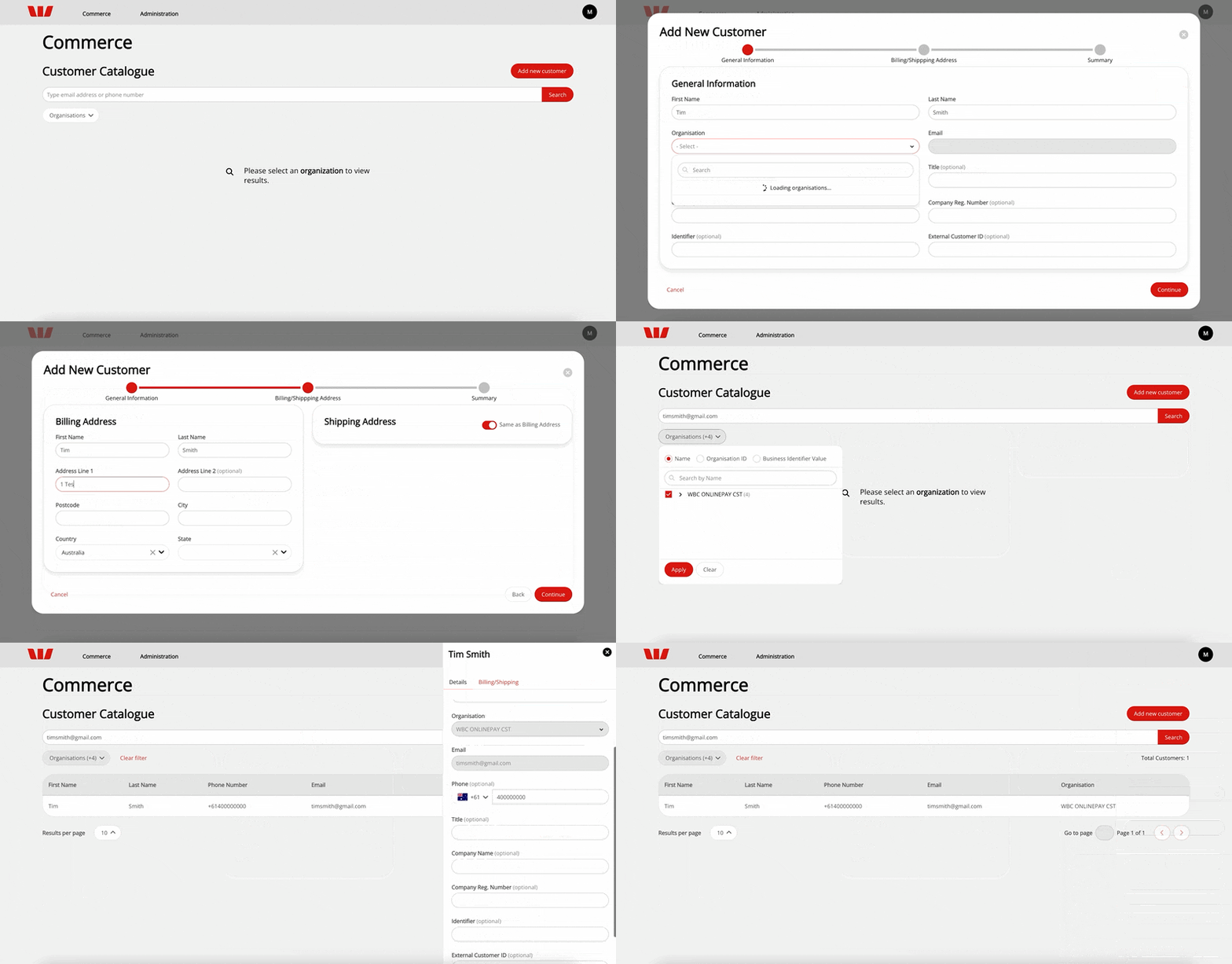
Creating a new customer
Access the Customer Catalogue
Merchant Admins and Merchant Supervisors can access the Customer Catalogue from the OnlinePay dashboard under Commerce > Payment Tools > Customer Catalogue.
Select the organisation to display a list of all customers in the Customer Catalogue for the selected organisation, including their name, phone number (if supplied), organisation, and email addresses. You can search for specific customers by email or phone number using the search bar at the top of the page or filter by organisation.
Add a new customer to the Customer Catalogue
To add a new customer to the Customer Catalogue:
-
Click the Add Customer button at the top right of the Customer Catalogue page.
-
In the Add Customer form, enter the customer's details. The following fields are required:
- First Name
- Last Name
- Email Address
- Organisation
-
(Optional) The following fields can be completed if required:
- Phone Number
- Title
- Company Name
- Company Reg. Number
- Identifier
- External Customer ID
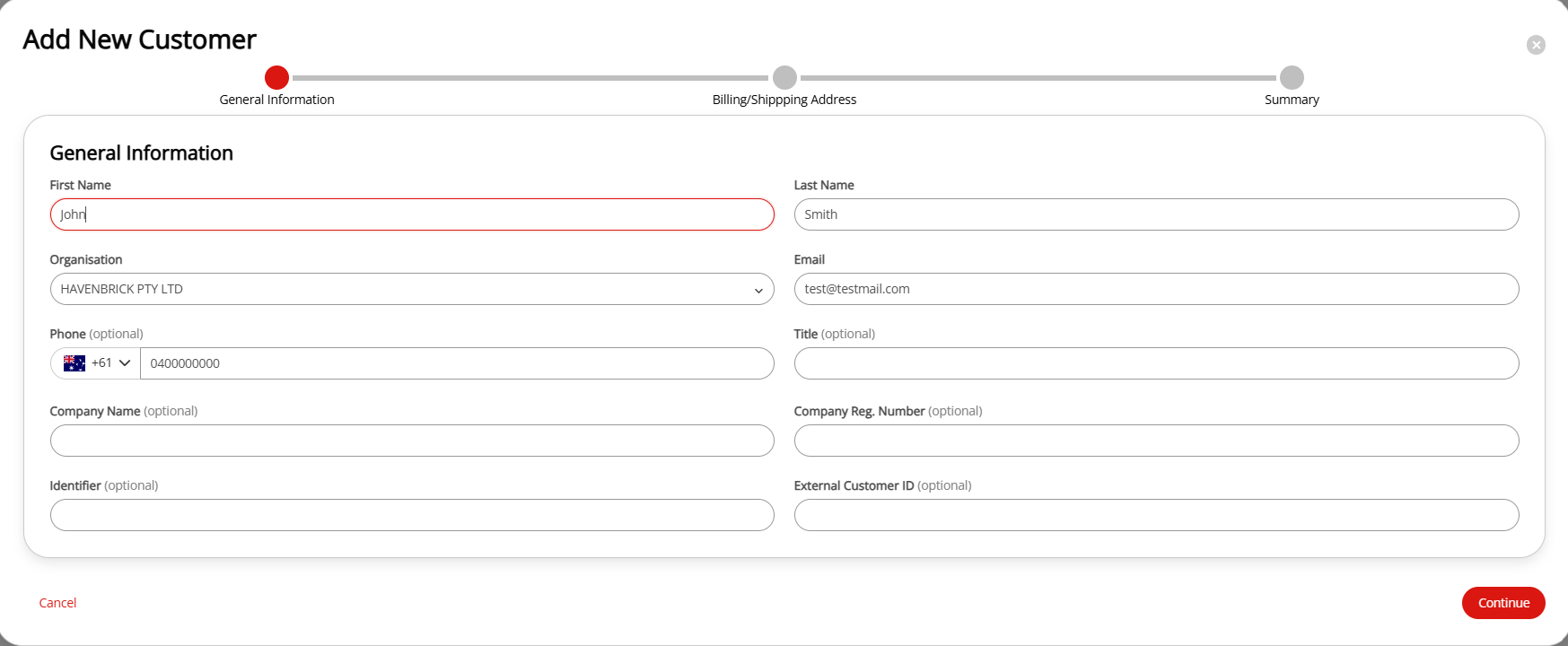
-
Click Continue.
-
Complete the customer's billing address details:
- Address Line 1
- Address Line 2 (optional)
- City
- State
- Postcode
- Country (default is Australia)
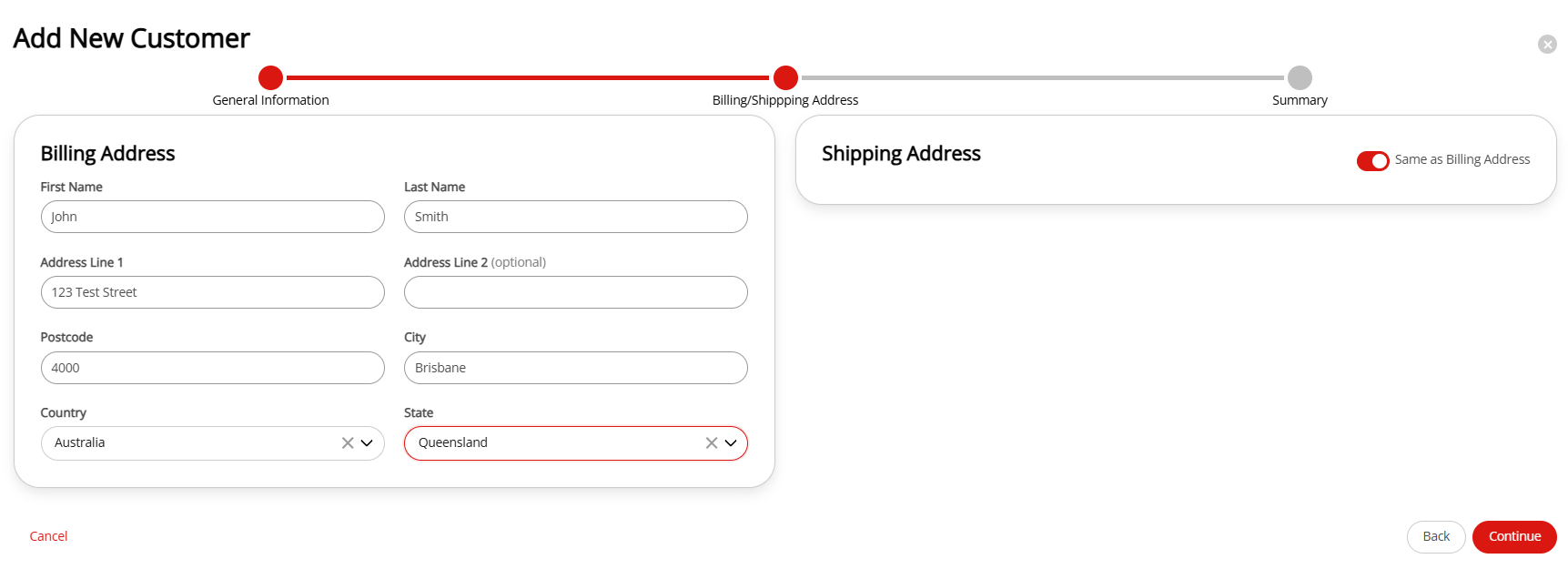
-
By default, the Shipping Address is toggled to Same as Billing Address. If the shipping address is different, toggle this off and enter the shipping address details.
-
Click Continue.
-
Review the customer details are correct, then click Save & Close.
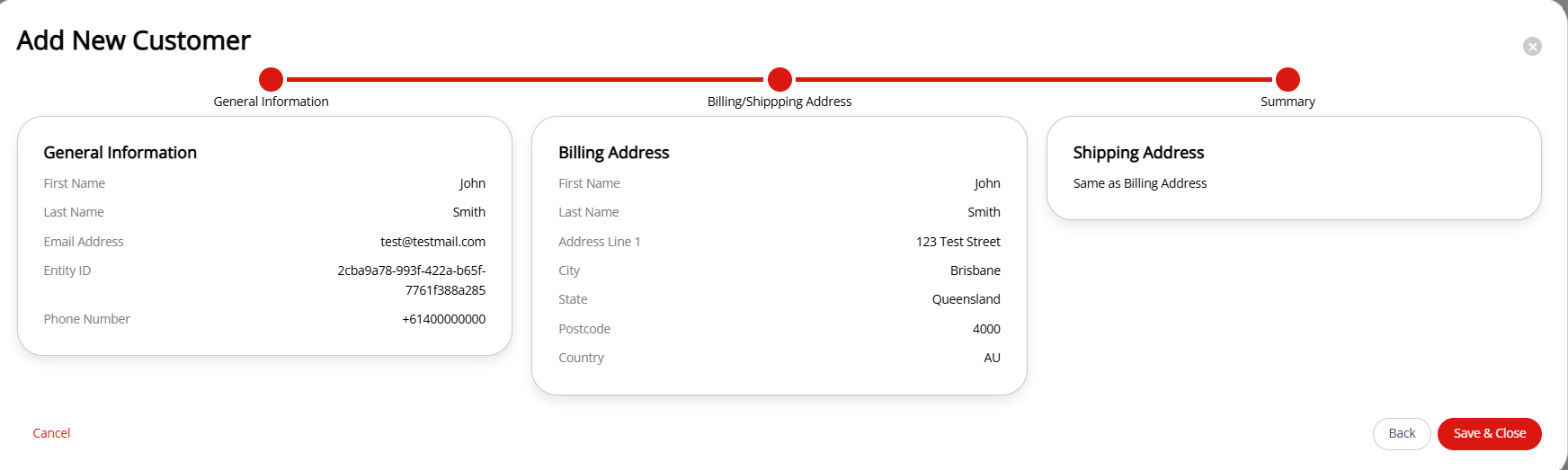
The customer will appear in the Customer Catalogue list when their organisation is selected. You can search for them in the customer catalogue by selecting the organisation they are associated with, or when searching their email address or phone number.
Edit a customer in the Customer Catalogue
You can edit the details of a customer in the Customer Catalogue if you need to update their information. Not all fields are editable.
- The email address is the primary identifier for a customer in the Customer Catalogue. If you need to change a customer's email address, you must create a new customer profile for them in the Customer Catalogue.
- The organisation cannot be changed for a customer. If you need to change the organisation, you must create a new customer profile for them in the Customer Catalogue under the organisation you want to assign them to.
To edit a customer in the Customer Catalogue:
-
Open the Customer Catalogue page in the OnlinePay dashboard under Commerce > Payment Tools > Customer Catalogue.
-
Filter by the organisation the customer belongs to. The Customer Catalogue will display only customers associated with the selected organisation. You can filter the organisations by
Name,Organisation ID, orBusiness Identifier Value. The ID and BIV can be found on the organisation profile under Settings > Organisations.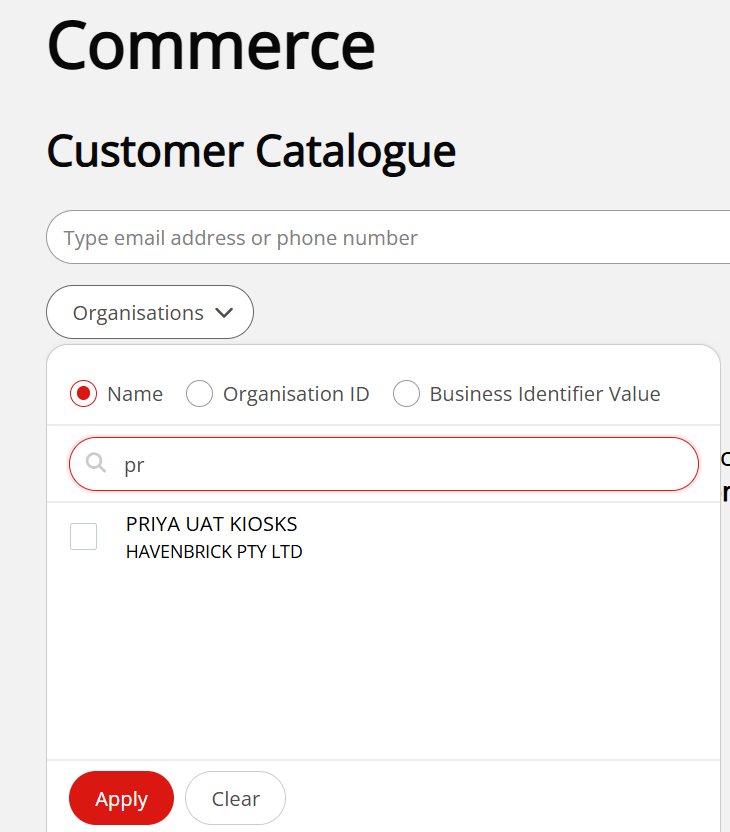
-
Click Apply to apply the filters and show the matching customer results.
-
Find the customer you want to edit by searching for their email address or phone number in the search bar.
-
Click on the customer in the table to open their details in the details panel on the right side of the page.
-
Edit the field/s you want to update. The following fields are editable:
- First Name
- Last Name
- Phone Number (optional)
- Billing Address
- Shipping Address
- Title (optional)
- Company Name (optional)
- Company Reg. Number (optional)
- Identifier (optional)
- External Customer ID (optional)
-
When you have finished editing the customer details, click Save & Close to update the customer profile.
Updated about 1 month ago