

Reporting filters
Overview
View and export reports (in CSV format) that display your transactions based on the search criteria of your choosing:
- Report type
- Creation or settlement date
- Organisation Name, ID, or Business Identifier Value
- Merchant ID
- Other details, found under + Add Filter. See Filter by details for more information.
- Searchable identifiers found under the search bar drop-down menu. See Filter by identifiers for more information.
Filter by report type
Click on the toggle button to switch views between Orders/Transactions.
- Order view: Simplified navigation with features like related transactions links and initial order event highlights, making it easier to manage and act on orders.
- Transaction view: Features such as transaction UUID links and the ability to click through to specific transaction details, enhance traceability and detailed investigation.
Filter by created or settled date
Click Created date or Settled date to filter orders or transactions based on a date range.
- If
Created dateis selected, the filter will include transactions initiated during the selected date range. - If
Settled dateis selected, the filter will include transactions settled during the selected date range.
Filter by organisation
You can filter the results according to the organisation(s) you are part of, by selecting the required organisation(s) from the main drop-down menu, or by selecting one of the below three options:
- Name: Use the name of the desired organisation or part of the name.
- Organisation ID: Use the organisation ID, which can be found under Administration > Organisation Company and Sites.
Merchants using OnlinePay to view other supported banking products, such as EFTPOS Now, EFTPOS Flex, and EFTPOS Air, will be able to use the
Acquirer Merchant IDfilter to view transactions for a specific merchant product. TheMerchant IDrelating to each product is available to you on your product welcome letter and merchant statement.It is recommended that you use the
Acquirer Merchant IDfilter under the + Add Filter button to view transactions for a specific merchant product where multiple organisations with the same name are listed.
Filter by Merchant ID
The Merchant ID (MID) filter only shows the values for the organisations you are part of which have corresponding Payment Provider Contracts (PPC) for OnlinePay. Therefore, the organisations listed under the Merchant ID drop-down filter are OnlinePay MIDs.
Multiple Merchant IDs can be selected.
To include transactions based on other merchant products or services, you can use the search bar drop-down to select
Acquirer Merchant IDorMerchant Referenceto filter transactions for non-OnlinePay MIDs.
You can also search for the required Merchant ID from the list by entering the full Merchant ID, which can be found under Administration > Payment (Provider) Contracts. To check if you have permission to view the payment provider contracts, check the Set up users and roles documentation.
Filter by details
Select + Add Filter from the toolbar to filter transactions based on the following transaction details:
| Transaction Detail | Description | Valid Selections |
|---|---|---|
| Channel | Where the sale originated, e.g. from terminal or online. | All |
| Product | The card type or payment method used by the cardholder. | All (except Diners) |
| Transaction type | The type of transaction, e.g. sale or refund. For more information on transaction types, read the documentation. |
|
| Transaction state | The status of the transaction, e.g. authorised or declined. For more information on transaction states, read the documentation. |
|
| Wallet | You can view and export reports that display your transactions based on the wallet used (Google Pay or Apple Pay). | All |
| Stored credential type | Stored data used to authorise payment in recurring transactions. There are two types:
| All |
| Account type | The type of account used in the transaction, whether it is a Debit or a Credit account. | N/A |
| Token type | The type of token used in the transaction. | |
| Amount | The transaction amount. | ✔ |
| Reuse Token Context | Any setup that uses a token to make a transaction secure. This will filter transactions according to the following token contexts:
| |
| Origin | Source or payment gateway information from where this transaction event originated (if applicable). | N/A |
| Funding Source | To determine the type of funding linked to a card, you need to identify whether the card is associated with a savings account, a prepaid account, or a credit facility. | N/A |
Filter by identifiers
You can search for transactions based on transaction identifiers. Select a transaction identifier from the drop-down menu, enter the correct value for the transaction(s) you are searching for into the search bar, and then click Search. You can choose from the following identifiers:
- Acquirer Merchant ID: Identifier assigned to the merchant and known by us. This is a recommended search criterion for merchants using OnlinePay to view other supported banking products.
- Batch File Number: Internal identifier assigned to the settlement file sent for batch settlement to us.
- Batch Number: Identifier assigned by us to a transaction that has been settled within the same settlement batch.
- BIN Number (Bank Identification Number): This contains the first 6-8 digits of the Primary Account Number (PAN). The BIN (or a BIN range) is assigned to a card issuer.
- Card Number: The number of the card used in the transaction, displayed in an encrypted format.
- Cashier ID: ID of the Cashier who created the transaction (not used for all the providers).
- Email (Customer)*: Email address of the shopper added while doing the payment or entered while generating the payment link on the Pay By Link page in the customer details section. This is the recommended search criterion for merchants who want to search for transactions from a specific customer.
- External Customer ID: An external identifier of the shopper.
- Internal Batch Number: Identifier corresponding to a batch of payments that have been submitted for settlement.
- Internal Stored Credential Reference: Reference to the sign up request.
- Invoice Number: The identifier of the invoice created for a card present transaction.
- Merchant Reference: A numeric value (up to 50 characters) that is assigned by the merchant in each transaction for their own identification.
- Processor STAN: A number that is assigned by a counter in the gateway (or the terminal) to identify the uniqueness against processor.
- Provider Transaction ID: An ID number generated by the provider for that specific transaction.
- RRN (Reference Retrieval Number): A number assigned by the processor, as a key to uniquely identify a card transaction (based on the ISO 8583 standard).
- Reference: A number assigned by the terminal or processor for each transaction.
- Reuse Token ID: A reusable token issued by OnlinePay or a third-party that is used to represent previously stored cardholder data.
- STAN (System Trace Audit Number): The 6-digit number incremented for each transaction sent by the terminal ID.
- Sales Description: Description of the purchase, added by the merchant.
- Serial Number: Serial number of the device/terminal that generated the transaction for card present transactions.
- Scheme Reference: Data typically used in stored credential transactions.
- Settlement Batch ID: Settlement batch identifier.
- Subscription ID: Identifier of the subscription or agreement in the payment provider's system.
- Terminal ID: The eight digit ‘TID’ number. You can find this number on all of your receipts.
You can search using wildcards to match partial terminal IDs, which allows you to search transactions across all terminals, rather than needing to check each terminal individually.
This is the recommended search criterion for merchants using OnlinePay to view their point of sale transactions. - Transaction ID: A unique identifier assigned to each transaction.
- Transaction UUID: A unique identifier assigned to each transaction, different from the Transaction.
Wildcard search on the Terminal ID filter
You can use wildcards when searching with the Terminal ID filter to match partial terminal IDs and make it easier to find transactions across multiple terminals. For example, entering 123* will return all terminal IDs that start with 123.
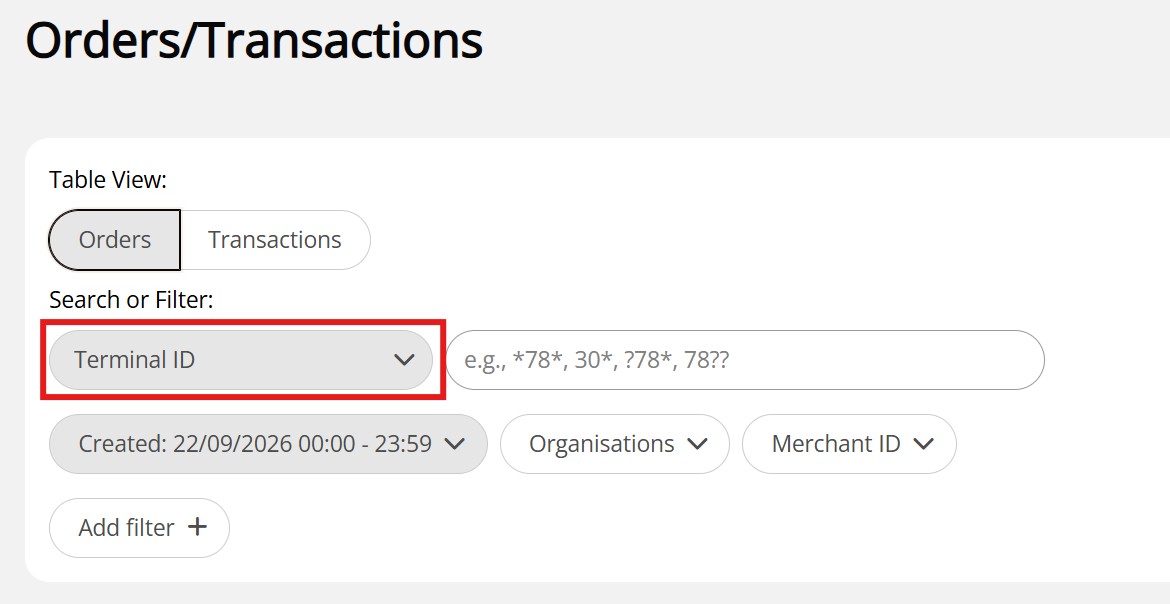
The wildcard operators you can use are:
*: Matches any number of characters, including zero characters. You can use it before or after the characters you want to search to match a partial Terminal ID wherever it appears.?: Matches exactly one character. You can use multiple?characters to match multiple single characters in the Terminal ID. It will not match zero or more characters like the*wildcard does.
You can combine wildcards to create more complex search patterns. The following examples illustrate how to use them:
12*3?: Matches terminal IDs that start with12, followed by any number of characters, and ending with any single character after3. Example:- It will match:
1234,12453,12abc3x. - It will not match:
12,123,12abc3, etc.
- It will match:
*123??: Matches terminal IDs that start with any number of characters followed by123and exactly two characters. Example:- It will match
012345,78912356, but not123456or00123456. - It will not match
1234,1234567,0123, etc.
- It will match
*123*: Matches terminal IDs that contain123anywhere within the ID. Example:- It will match
01234,91235,12345, but not1245. - It will not match
0123,1234,001234, etc.
- It will match
?123*: Matches terminal IDs that start with any single character followed by123and any number of characters. Example:- It will match
01234,91235, but not1234or12345. - It will not match
001234,a1234, etc.
- It will match
Report filtering best practice
-
When filtering reports, it is recommended to use the
Acquirer Merchant IDon the search bar drop-down menu to filter transactions for a specific merchant product where multiple organisations with the same name are listed. This will help you to view transactions for a specific site or MID.For example, if you are a merchant using OnlinePay to view EFTPOS Now transactions, you can use the
Acquirer Merchant IDfilter to search by your EFTPOS Now MID so that only those transactions are displayed in your report.The
Merchant Idrelating to each product is available to you on your product welcome letter, merchant statement, and transaction receipts. -
To search for transactions from a specific customer, use the
Email (Customer)option on the search bar. -
Not all + Add Filter options are valid for reports. It is recommended you review the Filter by details section for valid selections.
Updated 13 days ago