---
updatedAt: 2026-10-12T23:51:54.000Z
agentTools:
siteIndex: https://merchants.westpac.com.au/llms.txt
projectIndex: https://merchants.westpac.com.au/onlinepay/llms.txt
---
# Install and configure the Shopify plugin
Install the OnlinePay Shopify plugin and configure it with your OnlinePay settings.
## Overview
This section provides instructions on how to install and configure the OnlinePay Shopify plugin in your Shopify store. Ensure that you have already set up your OnlinePay account and have a Payment Provider Contract enabled for the payment methods you want to accept before you start the installation process.
## Install the plugin
Before you attempt to install the Shopify plugin, ensure you have completed the prerequisites listed in the previous section.
1. Log in to your Shopify store.
2. Go to the [Verifone Checkout AU](https://apps.shopify.com/verifone-checkout-au) page in the Shopify App Store.
3. Click **Install** to install the Verifone Checkout AU plugin in your Shopify store. View the information that the app can access and click **Install**.
4. Close the **Auto Setup Tool** window to return to your Shopify store. You will need to complete configuration manually.
The Verifone Checkout AU plugin is now installed, but you cannot take payments until you configure it with your OnlinePay settings.
## Configure the plugin manually
The Verifone Checkout AU plugin must be installed and configured with your OnlinePay settings manually before you can start accepting payments in your Shopify store.
1. On the **Verifone Checkout** plugin page, click **Manage Account** to open the setup tool.
2. Close the **Auto Setup Tool** window to return to set up the plugin manually.
3. In the **Account settings** section, enter the following credentials from the OnlinePay dashboard:
* `User ID` - The unique identifier of the OnlinePay user that created the API key. This can be found on the URL for the My Account page following `/users/`.
* `API Key` - The API key you created in the OnlinePay dashboard under **Profile > API Keys**.
* `Organisation ID` - The unique identifier for the organisation you want associated with your Shopify store, found under **Administration > Account Setup > Organisation Company and Sites**. This should be the organisation connected to your Payment Provider Contract.
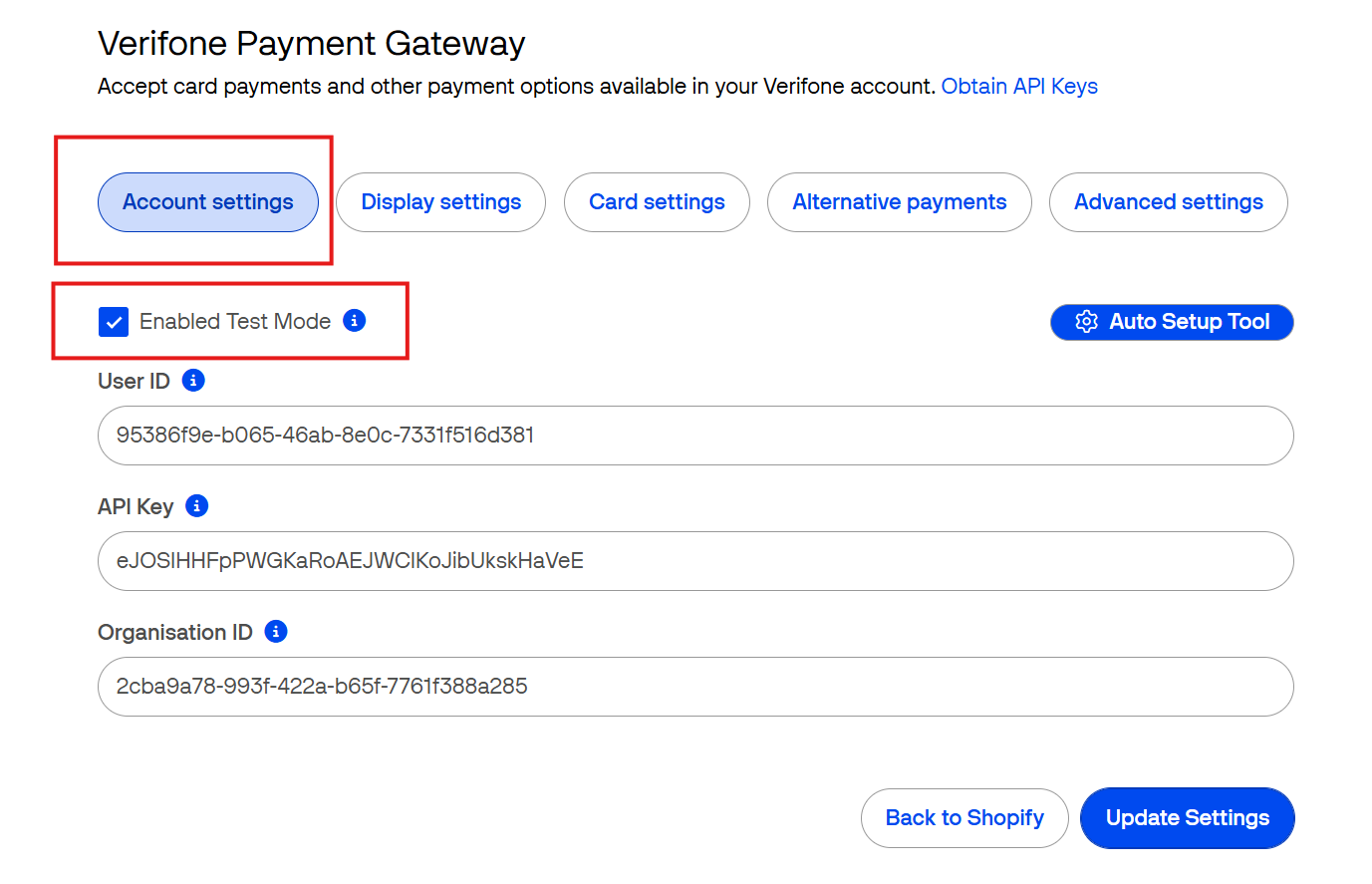
If you have an OnlinePay test account, you can select `Enable Test Mode` to test the plugin in your OnlinePay CST environment. You must provide your test account `User ID`, `API Key`, and `Organisation ID` to set up the plugin for your test account.
To change the integration environment to your production account, you will need to return to this page using the **Manage Account** button on the Shopify plugin admin page, disable test mode, and provide your production account credentials.
See [Get started with the OnlinePay API](https://merchants.westpac.com.au/onlinepay/docs/get-started-with-the-onlinepay-api) for more information on how to retrieve these values from the OnlinePay dashboard.
4. (Optional) The **Display settings** fields allow you to configure the look and feel of your payments page.
1. To use a Checkout theme you have already created in the OnlinePay dashboard, provide your [Checkout theme ID](https://merchants.westpac.com.au/onlinepay/docs/checkout-theme-customisation). If you do not provide a `Theme ID`, the default OnlinePay theme will be used instead.
You can also drag and drop the payment methods you want to accept into the order you want them to appear on the payment page. The payment methods appear as disabled  or enabled  on the payment page based on the payment methods you have enabled in your Payment Provider Contract.
5. In **Card settings**, select the `Enable card payment` checkbox to allow customers to pay with a credit or debit card, and provide your [Payment Provider Contract](https://merchants.westpac.com.au/onlinepay/docs/payment-provider-contracts) ID.
You must also enable `Card 3DS` and provide your [3DS Contract](https://merchants.westpac.com.au/onlinepay/docs/3ds-id) ID. 3D Secure is a security protocol that provides an additional layer of security for online credit and debit card transactions. We require merchants to use 3D Secure for card payments. Failing to enable 3D Secure will result in you being liable for any chargebacks. See [3D Secure](https://merchants.westpac.com.au/onlinepay/docs/3d-secure) for more information.
6. The **Advanced settings** are automatically configured with `Sale`. The means that authorisation and capture occurs immediately when the customer places an order.
The other options are `Auth` and `Pre-auth`.
* `Auth` - Authorisation only. This is not supported for OnlinePay.
* `Pre-auth` - Authorisation and capture. Capture must be performed manually in the OnlinePay dashboard.
7. Click **Update Settings** to save your configuration.
8. Click **Return to Shopify** to return to your Shopify dashboard. The Verifone Checkout AU plugin is now installed with your OnlinePay settings.
9. Click **Activate** to enable the plugin in your Shopify store. You can now start accepting payments from customers using the payment methods you have enabled in your OnlinePay Payment Provider Contract.
> ℹ️ OnlinePay does not currently support the **Alternative payments** options in the Shopify plugin.