

Vertical Navigation
Overview
The Vertical Navigation layout is designed to make it easier for you to find what you need, maximise screen real estate, and provide an intuitive workflow. From the navigation menu, you can access all views of your Presto Dashboard, including transactions, reports, user management, and settings. This structure allows you to quickly switch between different areas of the application without losing context or having to navigate back to a central dashboard.
Key Features of Vertical Navigation
Persistent Visibility
Your main menu stays accessible on the left side of the screen, allowing you to switch between views without back-tracking.
Hierarchical Grouping
Related features are grouped into logical categories (transactions, settlements, user management etc.), making it easier to find what you need.
Scalable Design
As new features are added to your account, they appear in the list rather than being hidden behind dropdowns or buried in submenus. This ensures you always have access to the latest tools and insights.
How to Navigate
The Vertical Navigation menu is open by default.
Collapsing for Focus
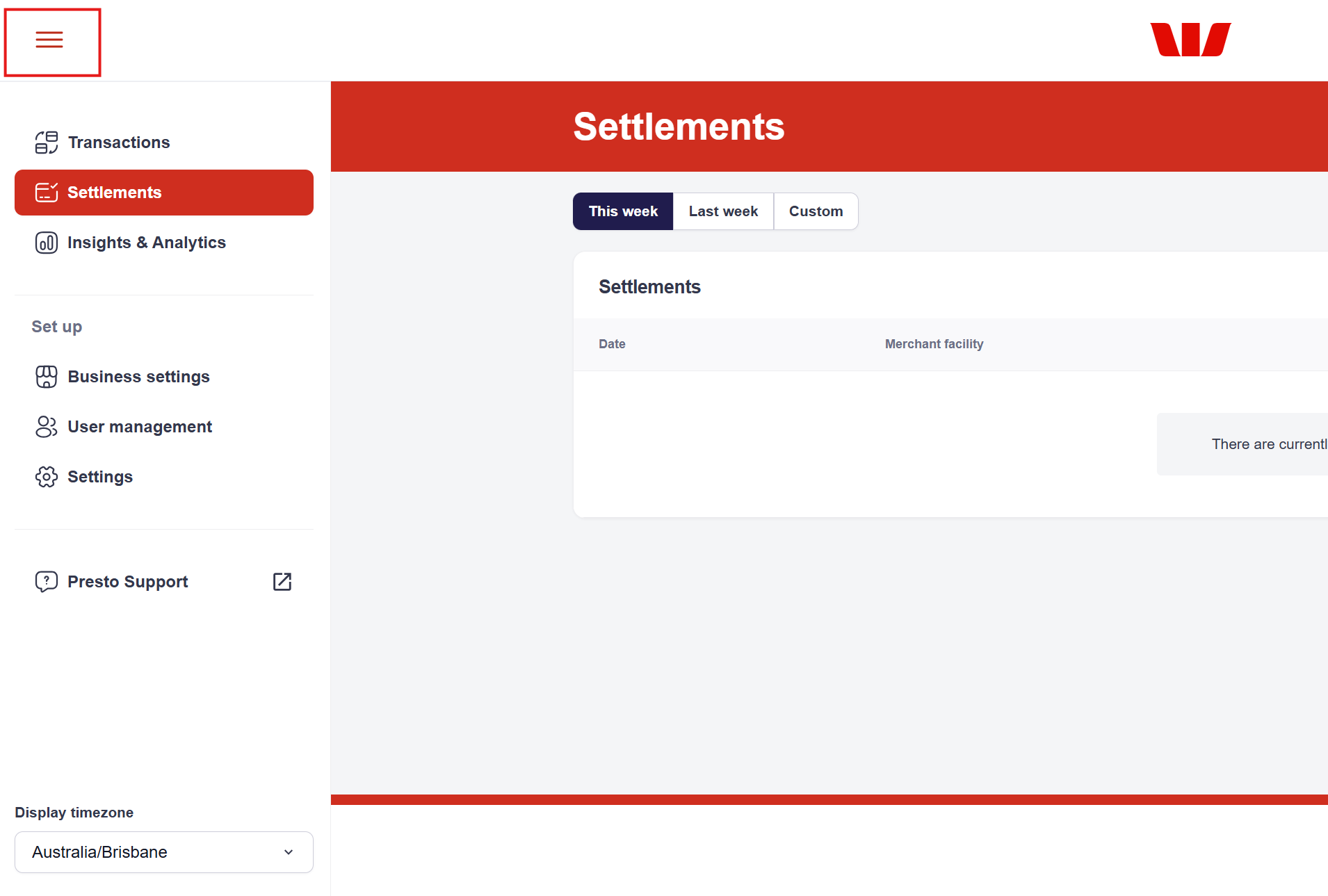
Click the hamburger icon in the top-left corner to collapse the side menu and maximise your workspace. Click the hamburger icon again to expand the side navigation again.
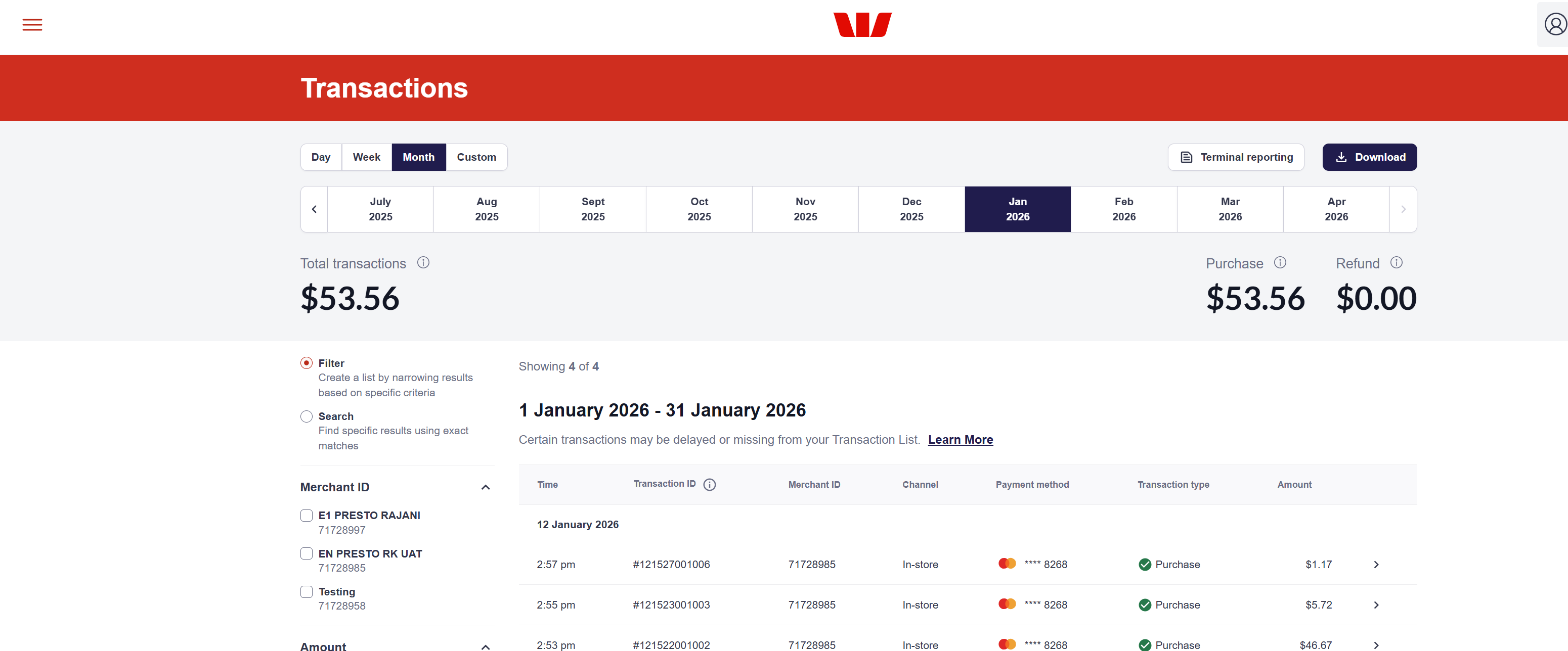
Collapsed View
Hides side navigation to provide a larger workspace for data-heavy tasks.
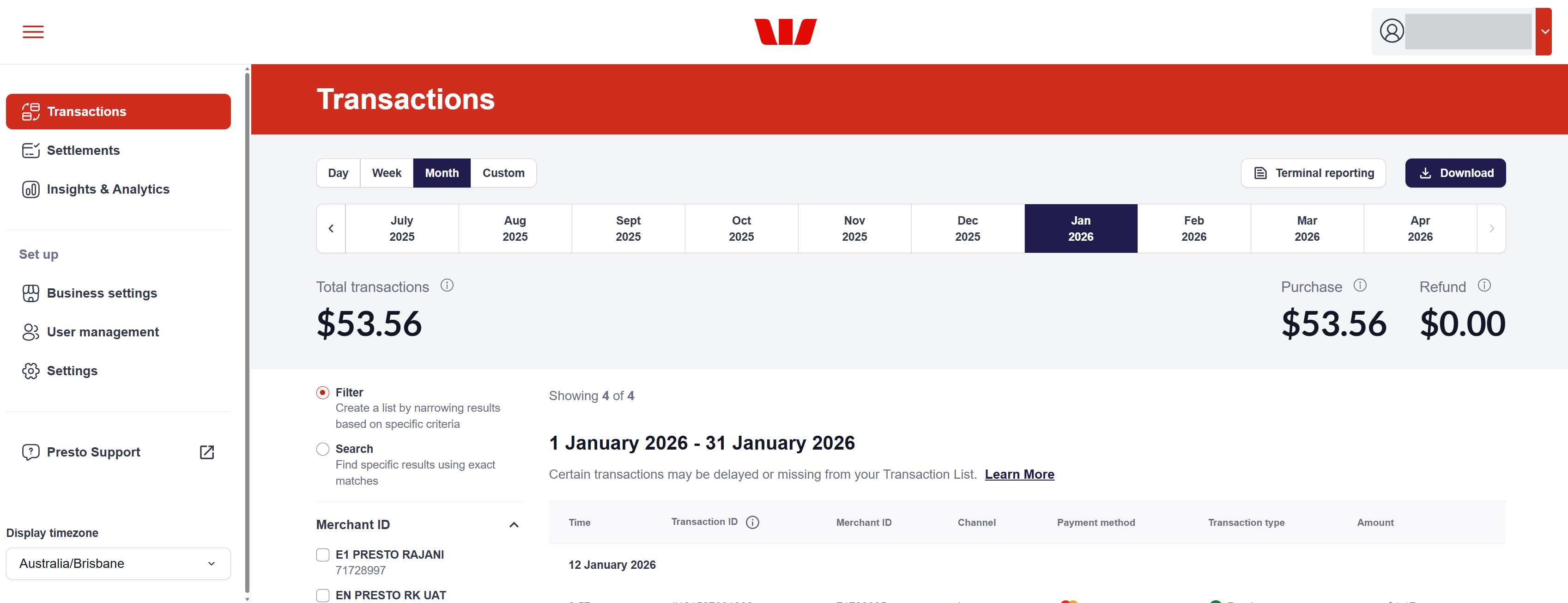
Expanded View
Shows icons and text labels for easy identification.
Active State Indicators
The page you are currently viewing will be highlighted in the Vertical Navigation menu. This indicator ensures you always know your location within the application.
Updated about 2 months ago